In this guide
01Understand what IPTV subtitles depend on02Identify the exact subtitle symptom03Turn on subtitles inside the player04Separate a missing track from a player fault05Check Fire TV, Android TV, Smart TV and Windows06Fix captions that are out of sync or hard to read07Avoid fixes that can make the problem worse08Send support evidence that leads to a useful answerUnderstand what IPTV subtitles depend on
Most IPTV players display subtitle or caption tracks supplied with an authorised live stream or on-demand item; they do not generate a missing track. Some operating systems offer separate live-caption accessibility features, but availability, language support and behaviour vary by device.
Live television and on-demand video can expose captions differently. A live stream may carry broadcast captions, while a film or episode may include one or more selectable text tracks. Subtitles can therefore work in one area and be absent in another without the whole player being faulty.
Embedded, selectable and forced tracks
A selectable track normally appears by language in the player's subtitle menu. A forced track is intended for selected dialogue or signs and will not caption every spoken line. If the menu shows only Off, None or no subtitle control, the player is not currently exposing a usable track for that item.
Subtitles are separate from the EPG
Programme-guide data describes what is on and when; it does not contain the words displayed during playback. Refreshing an EPG can repair a blank schedule, but it cannot restore a missing subtitle track.
Identify the exact subtitle symptom
Start by describing what you can see. Different symptoms point to different causes, and choosing the right branch prevents unnecessary reinstalls.
No subtitle option appears
- Test another programme in the same section, then one from a different section.
- Open the controls while video is playing; some players hide track choices on the information page.
- If only one item has no option, its caption track may be absent or unsupported.
- If no item shows an option, check the player version and subtitle settings.
A language is listed but no words appear
- Switch subtitles off, wait a few seconds, then select the language again.
- Try another listed language to determine whether one track is empty.
- Restart that programme from a clean playback session instead of repeatedly toggling controls.
- Compare the same item in a second compatible player before changing device-wide settings.
Text appears but is late, early or unreadable
Timing, character display and styling are separate problems. A fixed timing difference may respond to a subtitle-delay control; increasing drift usually points to timestamps or playback decoding. Empty squares or broken characters suggest a font, encoding or renderer limitation rather than a missing track.
Turn on subtitles inside the player
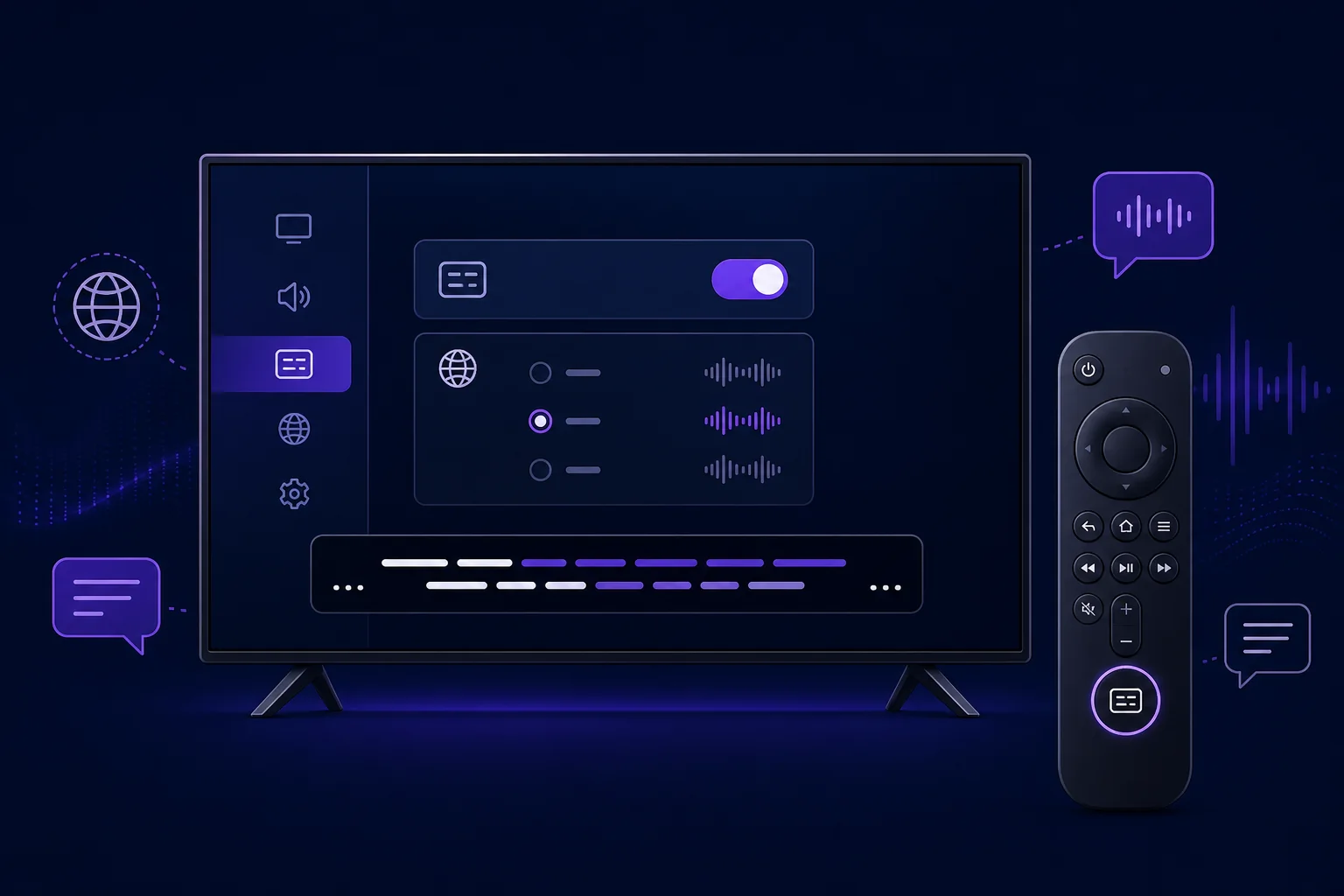
Begin inside the playback screen because the active track is usually chosen per programme. The button may be labelled Subtitles, CC, Captions, Tracks or Languages, or shown as a speech-box icon. Exact wording varies by player version and device.
Choose a full language track, such as English, rather than Auto or Forced for the first test. Wait briefly after selecting it. If the controls disappear, reopen them and confirm the chosen track remains selected.
Use this safe order
- Start playback and open the on-screen controls.
- Open the subtitle, CC or track selector.
- Select a named language and allow playback to resume.
- Move to a spoken scene and wait long enough to confirm the result.
- Turn the track off and on once if it was already selected.
- Close and reopen the item if the selection does not take effect.
Check default-language preferences
A player may prefer the device language, a saved subtitle language or no subtitles. If captions keep turning off between programmes, set the preferred subtitle language in the player and test again. Do not assume Auto will choose English when several tracks have incomplete labels.
Separate a missing track from a player fault
Two controlled comparisons usually reveal more than a reinstall. Keep the programme, account and network unchanged while changing only the player; then keep the player unchanged while changing only the programme.
When only one programme is affected
If subtitles work elsewhere but the same item lacks them in two compatible players, the likely issue is that item's track, language label or timing data. Record the item and language, then report it to the authorised provider. Reinstalling the app is unlikely to add source data.
When every programme is affected in one player
Update the player from its verified source, restart it and review its subtitle renderer or preferred-language setting. If another compatible player shows tracks correctly on the same device, the account and programme data are probably available and the first player needs attention.
When every player is affected on one device
Check the device accessibility settings, system language, free storage and operating-system updates. A second device using the same authorised access can help separate a device limitation from a wider source problem.
Check Fire TV, Android TV, Smart TV and Windows
Device caption settings are useful for appearance and accessibility, but the subtitle track still normally needs to be selected inside the player. Menu names change between software versions, so follow the closest Accessibility, Captions or Closed captions option on your device.
Fire TV and Android TV
- Open the player's subtitle menu during playback before changing system settings.
- Review accessibility caption preferences if text is too small, invisible or difficult to read.
- Restart the device normally after a player or system update.
- Clear the player cache only if it remains unresponsive; do not choose Clear data or Clear storage first.
Smart TV applications
- Install updates from the television's official app store.
- Power-cycle the television only after closing the application normally.
- If the track is listed but never renders, compare the item on a supported phone, computer or streaming device.
Windows players
- Check both the subtitle track and subtitle visibility controls.
- Reset custom font colour, opacity or screen position if captions may be present but invisible.
- If a decoder setting changed recently, return it to its previous value before trying another change.
Fix captions that are out of sync or hard to read
Correct a fixed subtitle delay
If dialogue, picture and sound stay aligned but every subtitle line appears by the same fixed amount, use the player's subtitle-delay control in small steps. Plus and minus can behave differently between players, so make one change, observe it and reverse it if the gap grows. Reset the value to zero before testing another programme.
Recognise progressive drift
When captions start correctly and move further away over time, a single delay value will not solve the whole programme. Reopen the item once, test another item and note whether drift begins after pausing, seeking or resuming. Repeated drift at the same point is useful evidence for support.
Restore readable text
- Return font size, colour, background and opacity to a high-contrast default.
- Check whether zoom or overscan has moved captions outside the visible picture area.
- If accented letters appear as boxes in one track, record the language and item.
- Do not install unknown font packs or modified player builds to repair one programme.
Avoid fixes that can make the problem worse
Subtitle faults rarely require deleting an authorised profile. Destructive steps can remove favourites, history, settings or login details while leaving the original missing track unchanged.
- Do not clear all app storage before understanding what will be removed.
- Do not publish playlist URLs, usernames, passwords, MAC addresses or device keys in screenshots.
- Do not download subtitle files from unknown websites; they may be inaccurate, unlicensed or unsafe.
- Do not install modified applications to unlock subtitle features.
- Do not change several decoder, language and accessibility settings together.
Send support evidence that leads to a useful answer
Report the smallest reproducible case without sending credentials. State whether the problem affects live television, on-demand video or both, and whether the subtitle menu is missing, empty, invisible, unreadable or out of sync.
Include the device model, operating-system version, player name and version, selected subtitle language, approximate time, affected item and the result in a second item or player. That evidence helps support decide whether to investigate the player, device or supplied track.
- Exact symptom and subtitle language.
- One item or every item affected.
- Live, film, episode or all content types affected.
- Device and player versions.
- Whether another compatible player or device shows the track.
- Safe troubleshooting already completed.
Frequently asked questions
Can an IPTV player create subtitles when none are supplied?
Most IPTV players display supplied tracks rather than generating a missing one. Some devices provide separate live-caption accessibility tools, but their availability and language support vary.
Why does the subtitle menu show None or Off only?
The item may not contain a supported track, or the player may not recognise its caption format. If the same item has no named track in two compatible players, report the item and language to the authorised provider.
Are device accessibility captions the same as IPTV subtitles?
Not always. Device accessibility settings can enable or style supported captions, while the programme still needs a usable track unless the operating system separately supports live captioning.
Why do subtitles work on films but not live television?
Live and on-demand content can use different caption formats and source data. Test several live channels and several on-demand items to identify a consistent split.
How do I fix IPTV subtitles that are out of sync?
For a fixed difference, adjust subtitle delay in small steps and reset it before testing another item. If the gap grows over time, reopen the item and report the progressive drift.
Should I clear app data to repair subtitles?
Not first. Clear data can remove profiles, settings and favourites. Begin with track selection, a clean playback restart, a player update and a comparison with another item or compatible player.