In this guide
01Describe the sync problem before trying to fix it02Run a five-minute isolation test03Read the pattern and choose the right fix04Reset player controls safely05Check Fire TV and Android TV without a factory reset06Isolate soundbars, HDMI ARC and Bluetooth delay07Know when the problem is buffering instead08Report a repeatable audio-sync fault safelyDescribe the sync problem before trying to fix it
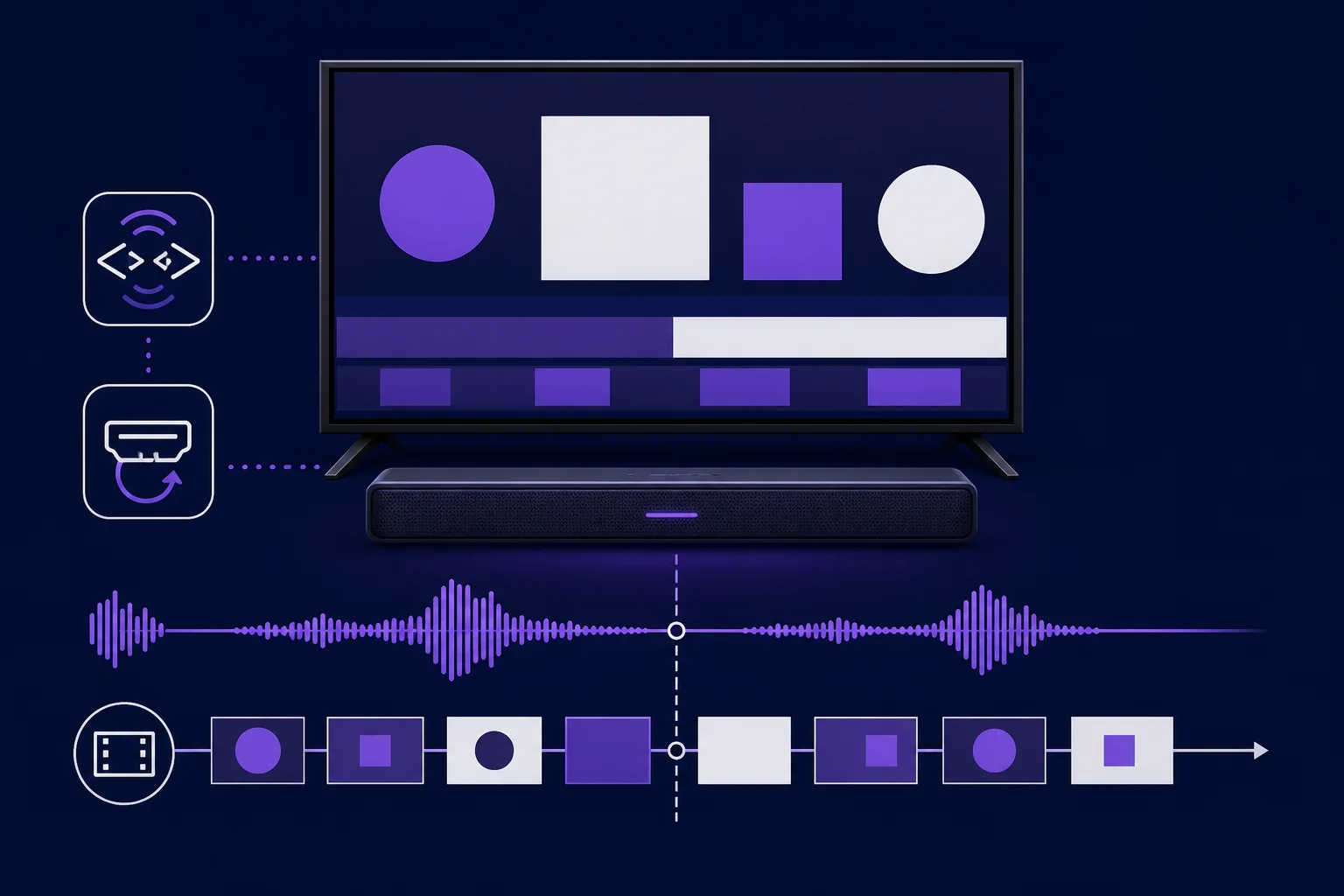
Audio-sync faults are easier to diagnose when you identify their direction and behaviour. Watch a clear speaking scene and decide whether the sound arrives before the mouth moves, after it, or begins correctly and drifts further away.
Use natural dialogue with visible lip movement for the first test. A second programme helps reveal whether the fault belongs to one source rather than the whole device.
Sound arrives before the picture
The video path may be taking longer than the audio path. Television motion smoothing, picture enhancement or frame conversion can add video-processing time. An audio-delay control may compensate, but first test a lower-processing picture preset so you understand what is causing the gap.
Sound arrives after the picture
The audio path may be adding latency. Bluetooth, surround processing, an AV receiver or a soundbar can delay sound. Adding more audio delay will make this direction worse, so compare the television speakers before changing a lip-sync value.
The gap grows during playback
Progressive drift is different from a fixed offset. Reopening playback may temporarily realign it, but a single delay value cannot correct a gap that keeps changing. Note whether drift starts after pausing, seeking, changing audio track or resuming.
Run a five-minute isolation test
Change one variable at a time and keep a note of the result. The purpose is to identify whether the fault follows the programme, player, device or sound system.
First, compare content
- Stop and reopen the affected programme once.
- Test a second programme from the same section.
- Test one item from a different section, such as live content versus on-demand video.
- If one item remains out of sync at the same point, record it for support.
Next, compare playback paths
- Use the same item in a second compatible player where authorised.
- Switch temporarily from Bluetooth, a soundbar or an AV receiver to the television speakers.
- If practical, test the same authorised access on another supported device.
- Return each temporary setting after the test so the result remains understandable.
Read the pattern and choose the right fix
Only one programme or channel is affected
A repeatable fault in one item, especially across two players, is unlikely to be repaired by resetting the whole device. Record whether the sound is early, late or drifting, the approximate time it begins and the selected audio track.
Everything is affected in one player
Close the player completely, install its current verified version and reset any custom audio offset. If it offers decoder or audio-output choices, note the current value before testing Auto or the documented default. Revert immediately if playback becomes less stable.
Every app is affected through the same speakers
The common part is now the device, television or audio path rather than IPTV alone. Check the television and sound-system lip-sync settings, firmware and connection route. A direct television-speaker test is the quickest way to confirm that conclusion.
Live content fails but on-demand video is correct
This split may indicate a live-stream timing or decoding issue. Compare more than one live item before reporting it, because a single affected channel still points towards that channel rather than all live playback.
Reset player controls safely
Many players provide separate controls for subtitle timing, audio timing and decoder mode. Make sure you are changing audio delay, not subtitle delay. Record the starting value and return it to zero or the documented default before testing.
Adjust a fixed delay in small steps
Use small changes and replay the same short speaking scene after each one. Labels and plus-or-minus direction differ between applications, so trust the observed result rather than assuming a positive value always means the same thing. Stop once speech and lip movement align.
Use decoder settings only as a controlled test
If the player offers Auto, hardware or software decoding, keep Auto unless there is a repeatable problem. Test one alternative only when the app documents it, then compare picture smoothness, audio and device temperature. Older television hardware may struggle with software decoding.
Do not clear all application data first
A normal restart and cache clear are less destructive. Clear data or storage can remove playlists, profiles, favourites and viewing history, yet it cannot repair timing embedded in one stream.
Check Fire TV and Android TV without a factory reset
Begin with the affected app, then the device, then any external audio equipment. A factory reset is disproportionate until the problem appears across multiple apps and simpler checks have failed.
Fire TV checklist
- Force-stop the player and reopen the same programme.
- Restart Fire TV from Settings rather than repeatedly removing power during playback.
- Install Fire TV and player updates from trusted sources.
- Test the television speakers and reset any player audio offset.
- If storage is low, remove unused apps rather than installing a cleaner.
Android TV and Google TV checklist
- Close the player fully and restart the device.
- Check for operating-system and official-store player updates.
- Return custom surround, passthrough or delay settings to their previous values for a clean test.
- Compare the built-in speakers with the external audio path.
- Avoid changing developer options or installing modified codecs.
Isolate soundbars, HDMI ARC and Bluetooth delay
External audio introduces more processing stages. The player decodes the stream, the television processes the picture, and the sound may travel through HDMI ARC or eARC, optical cable, Bluetooth, a soundbar or an AV receiver. A fault can appear even when each component works normally on its own.
Test the shortest audio path
- Disconnect Bluetooth and choose the television speakers.
- If sync returns, reconnect the external system and inspect its lip-sync or audio-delay control.
- For HDMI equipment, use the documented television port and check the cable connection.
- If practical, connect the streaming device directly to the television for one comparison.
Compare PCM with surround or passthrough
Complex surround processing can take longer than simple stereo output. Temporarily selecting PCM or stereo can identify that delay, but it is a diagnostic step rather than a universal permanent setting. If it fixes the issue, review the television and soundbar documentation before choosing the final format.
Reduce picture processing when sound is early
If sound arrives before the picture, temporarily disable heavy motion smoothing or test a lower-latency picture preset. If this reduces the gap, tune the television's picture and lip-sync settings rather than adding delay in several devices.
Know when the problem is buffering instead
Buffering causes pauses, spinning indicators, repeated frames or quality drops. Audio sync means playback continues but speech and picture do not line up. An unstable connection can interrupt playback, but more broadband speed will not reliably correct a fixed offset created by processing or source timestamps.
If the picture freezes and sound continues, or the player repeatedly catches up after a pause, stabilise the connection first. When playback is smooth and the delay remains constant, continue with audio-path and player checks.
- Check whether other devices are saturating the connection.
- Compare strong 5 GHz Wi-Fi with compatible Ethernet where practical.
- Restart the router only if several services are unstable.
- Do not repeatedly refresh the playlist while diagnosing sound delay.
Report a repeatable audio-sync fault safely
A useful report explains the pattern, not just that the sound is wrong. State whether audio is early, late or drifting; whether the fault affects one item or all playback; and whether it changes when using television speakers, another player or another device.
Include the device model, player and version, audio connection, selected audio track, approximate time and safe steps already completed. Never send a playlist URL, username, password, MAC address or device key in a public message or screenshot.
- Affected live channel, film or episode and approximate time.
- Sound before picture, sound after picture or progressive drift.
- One item, one player, one device or every app affected.
- Television speakers compared with soundbar, receiver or Bluetooth.
- Result after a clean restart and reset audio offset.
- Whether a second compatible player reproduces the fault.
Frequently asked questions
Why is IPTV audio out of sync on only one channel?
If one channel or programme repeats the same delay in two compatible players while other content is correct, its timing data is the likely cause. Record the item, approximate time and whether sound is early, late or drifting.
Why is sound delayed when I use a Bluetooth speaker?
Bluetooth encoding, transmission and speaker processing can add latency. Compare the television speakers first. If they are in sync, inspect the Bluetooth or sound-system delay settings.
Should I increase audio delay when sound is already late?
Usually not, because adding audio delay can make late sound worse. Labels vary, so note the original value and make one small change while watching a clear speaking scene.
Can slow internet cause IPTV lip-sync problems?
An unstable connection can cause freezes, skips and catch-up behaviour, but it is not the usual explanation for a smooth picture with a fixed sound delay. Diagnose visible buffering separately.
Why does audio start in sync and drift later?
Progressive drift can involve timestamps, frame-rate handling or decoding. Note whether it begins after pausing, seeking or resuming; a fixed delay control is unlikely to correct a gap that keeps changing.
Do I need to factory-reset Fire TV or Android TV?
Not at first. Compare another programme, player and speaker path; restart normally; install trusted updates; and reset custom audio offsets before considering a destructive reset.