
By SEO Expert & Stream Technician.
The landscape of home entertainment has shifted permanently. We have moved from the era of analog signals and coaxial cables to the era of data packets and IP addresses. IPTV (Internet Protocol Television) is at the forefront of this revolution, offering a flexibility that traditional cable providers simply cannot match. It allows you to stream live TV, movies, and sports directly over the internet to virtually any device with a screen.
However, unlike Netflix or YouTube, setting up IPTV is not always a “one-click” experience. It requires a fundamental understanding of how streaming protocols work, how to configure middleware apps, and how to optimize your home network for real-time data transmission.
In this extensive guide, I will take you through the entire ecosystem of IPTV. We will cover the technical differences between connection protocols, detailed setup instructions for Firestick, Mac, PC, and Smart TVs, and critical troubleshooting steps. Whether you are a complete beginner or a tech enthusiast looking to optimize your bitrate, this guide covers it all.
Table of Contents
- 1. Understanding the Core Tech: Protocols and Codecs
- 2. Choosing Your Weapon: Hardware Performance Analysis
- 3. The Firestick Masterclass: Sideloading & Configuration
- 4. The Smart TV Dilemma (Samsung Tizen & LG WebOS)
- 5. Desktop Configurations: VLC & Windows/Mac Setup
- 6. Mobile Streaming: iOS and Android Ecosystems
- 7. Network Optimization: Eliminating Buffering
- 8. The Role of the Provider: Why Bitrate Matters
- 9. Advanced FAQ & Troubleshooting
1. Understanding the Core Tech: Protocols and Codecs
Before we start installing apps, it is crucial to understand how IPTV works. When you buy a subscription, you aren’t just buying a channel list; you are buying access to a server. How your device talks to that server determines the quality of your experience.
The Connectivity Protocols: M3U vs. Xtream Codes
You will encounter two main ways to log in to IPTV players. Understanding the difference can save you hours of frustration.
1. M3U Playlist (The Old Standard)
An M3U (MP3 URL) is essentially a text file containing thousands of links. When you load an M3U URL into a player, your device downloads this massive file.
The Problem: Every time you open the app, it has to parse thousands of lines of text. This is heavy on the processor (CPU) and often results in a slow, laggy interface. It also makes the Electronic Program Guide (EPG) difficult to sync.
2. Xtream Codes API (The Gold Standard)
This is the modern method. Instead of a long URL, you input three things: Server URL, Username, and Password.
The Advantage: Your device authenticates with the server via an API (Application Programming Interface). It only requests the data it needs right now. This makes the menus snap, the EPG load instantly, and the categorization of movies and series much cleaner.
Recommendation: Always use the Xtream Codes login method if your provider supports it.
Video Compression: H.264 vs. HEVC (H.265)
Video files are huge. To stream them over the internet, they are compressed using “Codecs.”
- H.264 (AVC): The industry standard for the last decade. It’s compatible with everything but requires higher internet speed for good quality.
- H.265 (HEVC): The modern standard for 4K. It compresses video twice as efficiently as H.264. This means you can watch higher quality streams with less internet speed. However, it requires a stronger processor to “decode” the video.
If you plan on watching 4K content, ensure your device supports Hardware Decoding for HEVC.
2. Choosing Your Weapon: Hardware Performance Analysis
I am often asked, “Can I just use the app on my TV?” The answer is yes, but you probably shouldn’t if you want a premium experience.
| Device Type | Examples | Pros | Cons | Verdict |
|---|---|---|---|---|
| Dedicated Streamer | Firestick 4K Max, NVIDIA Shield | Fast CPU, Handles HEVC, Sideloading capability, Portable. | Requires an HDMI port. | Best Choice |
| Smart TV Native | Samsung Tizen, LG WebOS | No extra remote, clean setup. | Weak processors, limited app selection, slow updates. | Okay for basics |
| PC / Mac | Windows 11, macOS | Powerful processing, excellent for recording. | Not living-room friendly, cumbersome controls. | Great for testing |
| Mobile | iPhone, Android | Watch anywhere. | Battery drain, small screen, dependent on mobile data. | Good for travel |
3. The Firestick Masterclass: Sideloading & Configuration
The Amazon Firestick is the undisputed king of IPTV. It runs a modified version of Android, meaning we can bypass Amazon’s restrictions to install powerful IPTV players. Here is the definitive setup process.
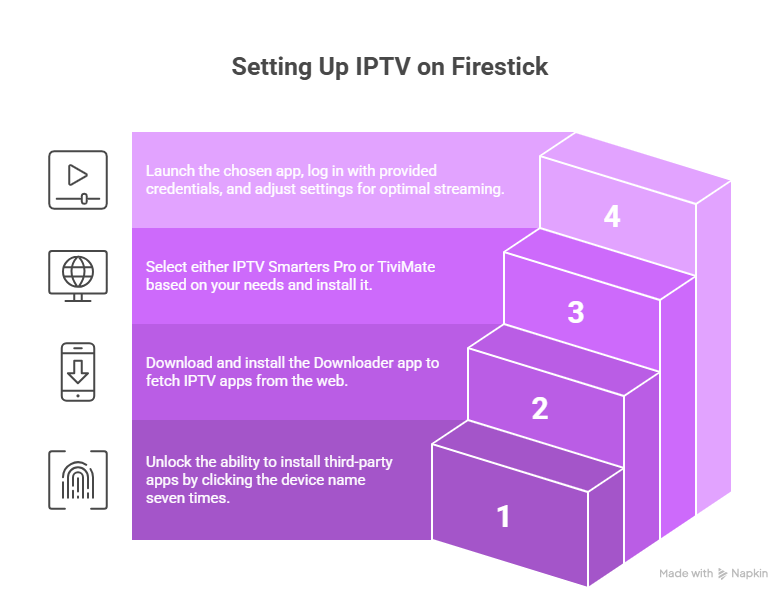
Step 1: “Jailbreaking” the Firestick (Unlocking Developer Options)
The term “jailbreak” is a bit dramatic; we are simply allowing the installation of third-party apps.
- From the Home Screen, navigate to the Settings Gear (far right).
- Select My Fire TV.
- Click on About.
- Crucial Step: Highlight the name of your device (e.g., “Fire TV Stick 4K”) and click the center button on your remote 7 times quickly.
- You will see a notification: “No need, you are already a developer.”
- Press the Back button once. You will now see a new menu item called Developer Options.
- Enter it and turn ON “Apps from Unknown Sources” (or “Install Unknown Apps”).
Step 2: The Downloader Utility
Since IPTV apps aren’t in the Amazon Store, we need a tool to fetch them from the web.
- Go to the Find/Search icon on the home screen.
- Type “Downloader”.
- Select the orange app named “Downloader” and install it.
- Open the app and give it permission to access files (needed to save the APK installer).
Step 3: Installing the Player (TiviMate or Smarters)
You need a “shell” application to play your content.
Option A: IPTV Smarters Pro (Best for Free Users)
In the Downloader URL bar, type the shortcode 78522 (or search Google for “Smarters APK”). Download and install.
Option B: TiviMate (Best for Premium Users)
This is widely considered the best IPTV player in existence due to its “Cable TV” look. You can download it via Downloader (code: 191081). Note that the premium features require a small annual fee, but it is worth every penny for features like Multi-View and Catch-up.
Step 4: Configuration
Launch your chosen app. Select “Login with Xtream Codes”. Enter the credentials provided by your service.
Pro Tip: Once logged in, go to Settings > Stream Format and change it to MPEG-TS. This container format is generally more stable for live streams than HLS.
4. The Smart TV Dilemma (Samsung Tizen & LG WebOS)
Setting up IPTV directly on a Smart TV is convenient because you don’t need a Firestick, but it comes with a unique set of challenges. Samsung and LG do not use Android; they use proprietary operating systems. You cannot install APK files. You are limited to the apps in their specific stores.
The “MAC Address” Activation Model
Most Smart TV apps (like IBO Player, Duplex Play, Smart One, Nanomid) operate on a paid-license model. The app itself is free to download, but after 7 days, you must pay the developer (usually ~5-10 EUR) to keep using it.
Step-by-Step for Smart TVs:
- Go to the Samsung or LG App Store.
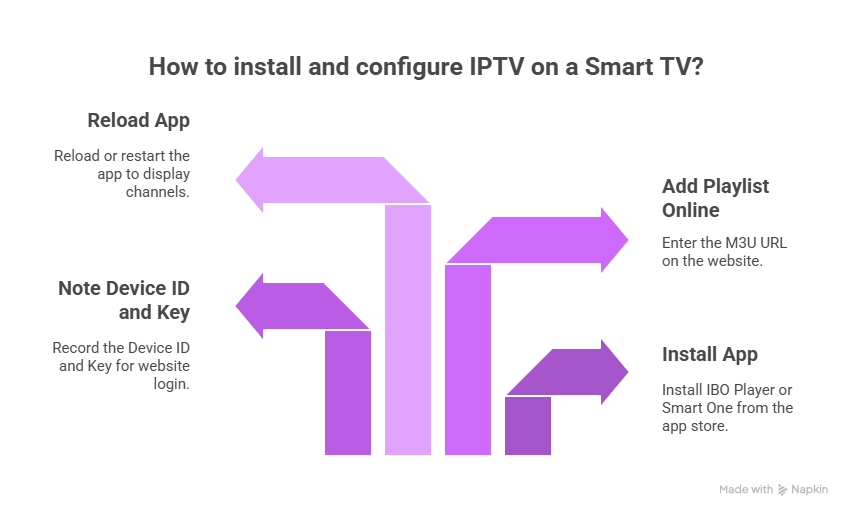
- Search for “IBO Player” or “Smart One” (these are currently the most stable). Install and open.
- On the screen, you will see a Device ID and a Device Key (or MAC Address). Write these down.
- You generally cannot enter your playlist directly on the TV with the remote. You must go to a computer or phone.
- Visit the website listed on the TV screen (e.g., iboplayer.com/manage).
- Enter your Device ID and Key to login.
- Click “Add Playlist”. Enter your M3U URL (provided by your IPTV service).
- Go back to your TV and press Reload or restart the app. Your channels should appear.
5. Desktop Configurations: VLC & Windows/Mac Setup
Computers are excellent for IPTV because they have powerful processors (CPUs) and plenty of RAM. They rarely buffer if the internet connection is good.
The VLC Media Player Method
VLC is open-source and handles almost any codec. It is the Swiss Army Knife of video players.
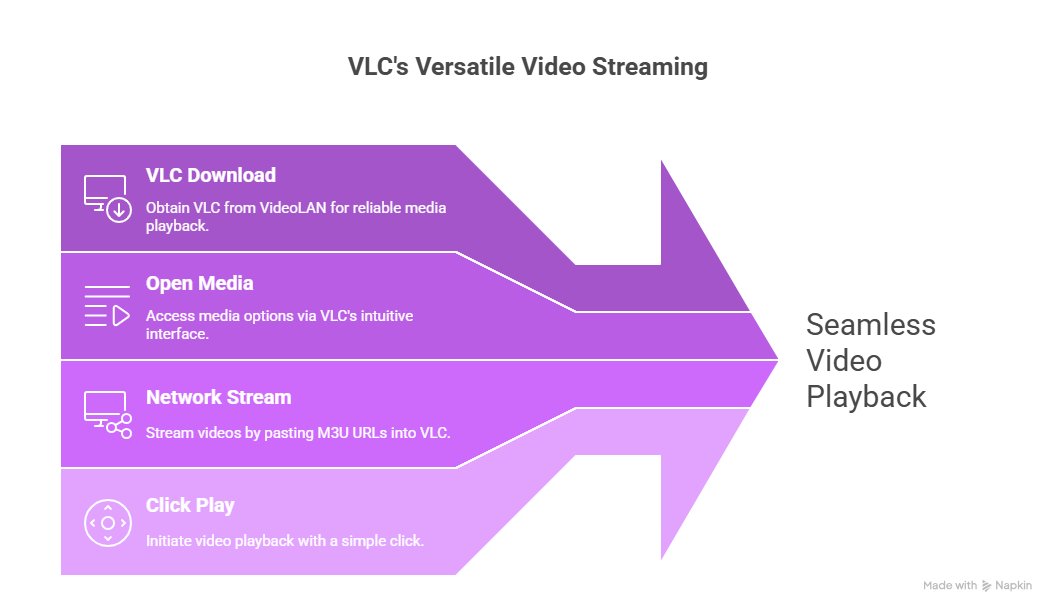
- Download VLC from the official VideoLAN website.
- Open VLC. Click Media (on Windows) or File (on Mac).
- Select Open Network Stream.
- Paste your M3U URL into the box.
- Click Play.
Navigating Channels in VLC
By default, VLC just plays the first channel. To see your list:
On Windows: Press CTRL + L to toggle the playlist view.
On Mac: Press Command + Option + P.
You can now use the search bar to find channels. Double-click to switch.
Expert VLC Tweaks for Quality
- Deinterlacing: Live TV often comes in “interlaced” formats (1080i). On a computer monitor, this looks like jagged horizontal lines during movement. To fix this, go to Video > Deinterlace > On, and set the mode to Yadif (2x). This will smooth out sports broadcasts significantly.
- Loop Filter: If you see gray blocks (artifacts), go to Tools > Preferences > Input/Codecs. Set “Skip H.264 in-loop deblocking filter” to All. This reduces CPU load.
The Native App Alternative (IPTV Smarters on PC)
If you dislike the VLC interface, there is a Windows/Mac version of IPTV Smarters. It offers the same “Netflix-style” interface as the mobile app. It is generally more user-friendly for browsing VOD (Video on Demand) libraries but less customizable than VLC.
6. Mobile Streaming: iOS and Android Ecosystems
Android
Android is straightforward. Download IPTV Smarters Pro or XCIPTV from the Play Store. If they are removed (which happens), you can download the APK from a browser just like on a Firestick.
iOS (iPhone/iPad)
Apple is strict. Many popular apps get removed.
Current Recommendation: Look for “Smarters Player Lite“ or “GSE Smart IPTV” in the App Store.
The “Xtream IPTV” Trick: Sometimes apps are disguised. They might look like a video player for local files, but once you enter credentials, they transform into an IPTV player.
Casting: If you want to move the image from your phone to your TV, do not use “Mirroring” (which lags). Use an app that supports Chromecast natively within the video player. This sends the video URL to the TV to load directly, rather than streaming it from phone to TV.
7. Network Optimization: Eliminating Buffering
This is the most critical section of the guide. You can have the best device and the best provider, but if your local network is poorly configured, you will buffer.
Wi-Fi Frequencies: 2.4GHz vs 5GHz
- 2.4GHz: Long range, passes through walls well, but slow speeds and high interference (microwaves, baby monitors). Avoid this for IPTV.
- 5GHz: Shorter range, struggles with thick walls, but extremely fast data transfer. Essential for 4K streaming.
Jitter vs. Speed
People assume “I have 500Mbps internet, so I shouldn’t buffer.” This is false. Streaming live TV is sensitive to Jitter (instability in the packet arrival time). Netflix buffers 30 seconds ahead, so it can hide jitter. Live TV only buffers 2-5 seconds ahead.
The Fix: Use an Ethernet cable. Hardwiring your device eliminates Wi-Fi interference and reduces jitter to near zero.
DNS Settings
Your ISP’s default Domain Name Server (DNS) is often slow. Changing this on your router or device can improve the “lookup” speed of streams.
Try Cloudflare DNS: Primary 1.1.1.1, Secondary 1.0.0.1
Try Google DNS: Primary 8.8.8.8, Secondary 8.8.4.4
ISP Throttling and VPNs
Internet Service Providers (ISPs) use Deep Packet Inspection (DPI). If they see you are streaming high-bandwidth video, they may throttle (slow down) your connection specifically for that activity.
If your speedtest shows 100Mbps but your IPTV buffers, you are being throttled. A VPN encrypts your traffic, hiding the type of data from your ISP, thus bypassing the throttle.
8. The Role of the Provider: Why Bitrate Matters
Finally, we must address the source. Not all IPTV providers are created equal.
The “Overselling” Problem: Cheap providers cram thousands of users onto a single server. During peak hours (like a Champions League final), the server runs out of bandwidth, and everyone buffers.
Bitrate and Resolution:
A true FHD (1080p) stream requires about 8-10 Mbps of constant data.
A 4K stream requires 25-40 Mbps.
Many budget providers compress their channels so heavily that “1080p” looks like 480p, just to save bandwidth.
My Professional Recommendation:
Through extensive testing of server response times and stream bitrates, I have found Xtreme HD to be an outlier in the market. They utilize high-bandwidth servers that maintain uncompressed picture quality, even during high-traffic sporting events.
While you can use the techniques in this guide to optimize any provider, starting with a high-performance source like Xtreme HD eliminates the variable of server-side lag, ensuring that your hardware setup can perform at its peak potential.
9. Advanced FAQ & Troubleshooting
Q: I get a “Parser Exception” error. What does this mean?
A: This usually means the app cannot read the playlist file. It happens often with M3U URLs that have been typed incorrectly. Double-check for spaces. Switching to Xtream Codes login usually fixes this.
Q: The guide says “No Information” on every channel.
A: Your EPG (Electronic Program Guide) failed to sync. Go to the app settings and find “EPG” -> “Update EPG”. If it persists, clear the app’s cache (Settings > Applications > Clear Cache) to force a re-download of the guide data.
Q: Why does the video loop the same 10 seconds over and over?
A: This is a “playback loop” error. It happens when the player loses packets and tries to reconnect to the stream but gets stuck in the buffer cache. Change your player’s buffer size to “None” or “Small” to force the player to stay live, or restart the router.
Q: Is it safe to use my credit card for IPTV?
A: It depends on the site. Always look for HTTPS encryption. Many users prefer to pay via Crypto (Bitcoin/USDT) for anonymity. Reputable providers will use secure third-party payment gateways so they never actually see your card details.
Final Thoughts
Mastering IPTV is a journey. It requires a bit of patience to find the right combination of device, app, and settings. But once you have dialed it in—using a robust device like a Firestick 4K, a stable ethernet connection, and a premium source like Xtreme HD—the result is a viewing experience that rivals and often exceeds traditional cable TV, at a fraction of the cost.
Take the time to configure your settings correctly using the steps above, and enjoy the freedom of streaming.